![logo.png]](https://support.ctl.columbia.edu/hs-fs/hubfs/logo.png?height=40&name=logo.png)
To share information hosted in Poll Everywhere, such as grades or attendance, to a course in CourseWorks (Canvas), you must first enable the Poll Everywhere integration in your CourseWorks (Canvas) site.
Enabling the Poll Everywhere integration will create a course in the Poll Everywhere platform with all the students currently enrolled in the corresponding Courseworks (Canvas) course.
To enable the Poll Everywhere integration in your CourseWorks (Canvas) course:
- Log into Poll Everywhere at https://www.polleverywhere.com/
- Log into CourseWorks (Canvas) at https://courseworks2.columbia.edu/
- Go to the CourseWorks (Canvas) course in question.
- Go to “Modules”. Click on the + Module blue button on the right hand corner to create a new module. A pop-up box will appear. Give the module a name, for example: Poll Everywhere. Press “Add Module” on the bottom right to create the module.

- Add an item within the module you just created by clicking on the + symbol next to the three vertical dots located to the far right from the module’s name. A pop-up box will appear.

- In the “Add” field from the drop-down menu select “External Tool”. A list of tools will appear, scroll down to find and click on “Poll Everywhere”. Just below, MAKE SURE TO CHECK the box “LOAD IN A NEW TAB”. Click on the blue box “Add Item” to save changes and close the pop-up window.
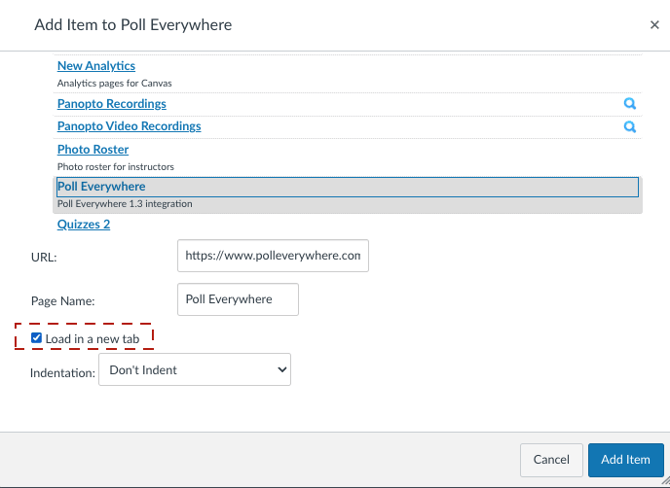
- Click on the link you just created within the Poll Everywhere module.
- The message “This tool needs to be loaded in a new browser window” will appear. Click on the button that appears just below this message and reads “Load Poll Everywhere in a new window” that appears just below this message

If instead of the button described above you see the following icon it could be that Courseworks cannot open a new browser window to connect with Poll Everywhere, to correct this issue, edit the module and make sure to check the box "Load in a new tab" described in step 6 above. Alternatively, the problem could be that the connection with Poll Everywhere cannot be made because you are not logged into Poll Everywhere. To solve this issue, log into Poll Everywhere as described in step 1 above, then refresh the CourseWorks (Canvas) Modules page and repeat steps 7 and 8 described above. - A new browser window will appear with the title header “Continue to LMS to login”. Click on the blue button that appears below this message and reads “Continue to courseworks2.columbia.edu”. Note that you are now outside CourseWorks (Canvas) and in the Poll Everywhere system. Now you will see your Poll Everywhere course dashboard where you have the options to ‘Sync Roster’ and ‘Add New Assignment.’ Click on ‘Sync Roster.’
- A new page with the message “Your roster is importing” will appear. Follow the prompts to access your “Course Dashboard” where you can manage any roster re-syncs. You can check your roster by accessing “Participants” from the main menu and viewing students in your course’s group. After CourseWorks and Poll Everywhere are connected, any changes of participants in the CourseWorks (Canvas) will be made to Poll Everywhere within the span 24 hours so long as roster sync is enabled in the Poll Everywhere Course Dashboard. However, more immediate roster changes may not be immediately reflected. To view the most up-to-date roster in Poll Everywhere, you can select ‘Sync’ roster from the Poll Everywhere Course Dashboard.